1. Simple Guestbook Plugin
This activity showcases a Simple Guestbook Form where users can enter their name, email, and a message. The interface features clearly arranged input fields and a message textarea, accompanied by a “Sign Guestbook” button for easy submission.
Guestbook Entries
hi
Hello!
2. Building a CRUD Plugin
student enrollment form designed as part of a CRUD plugin. The form is displayed on a dark-themed interface with a white form card at the center. It includes fields for First Name, Last Name, Email Address, Course, Gender (with a dropdown), Enrollment Date (with a date picker), and Contact Number. A blue “Enroll Now” button is placed below the fields.
Below the form is a section labeled “Enrolled Students”, showing a table that lists previously added students. The table displays columns such as Name, Course, Gender, and Enrollment Date, and currently shows one entry: Rhealene Padilla, BSIT, Male, December 11, 2025.
Enrolled Students
| Name | Course | Gender | Enrollment Date |
|---|---|---|---|
| Rhealene Padilla | BSIT | Male | December 11, 2025 |
3. Project Website Deployment in Hostinger
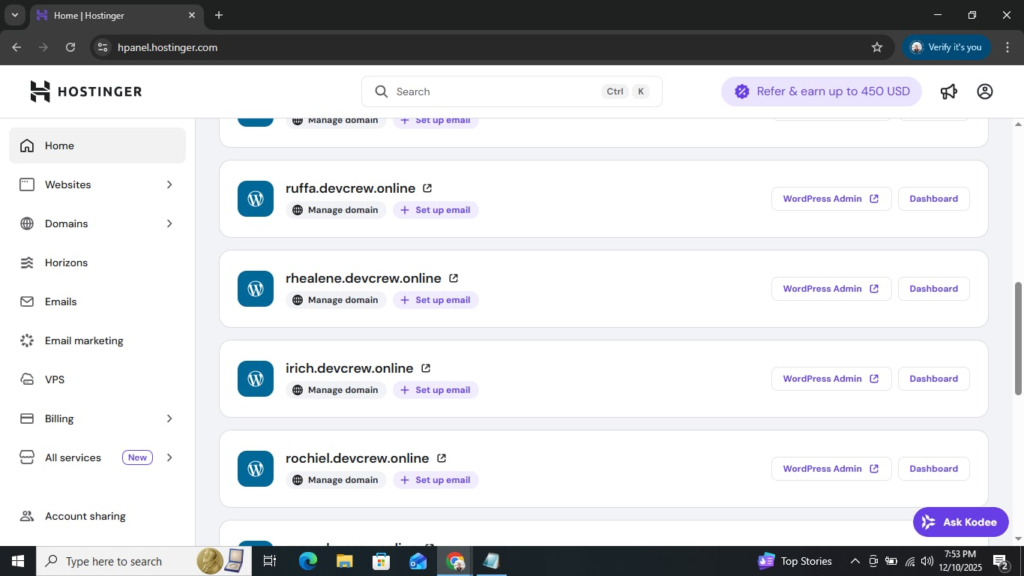
Hostinger is a web hosting platform designed to help users create, deploy, and manage websites easily. It provides tools and services such as domain management, WordPress installation, email hosting, file management, and server administration—all accessible through a user-friendly control panel called hPanel.
Hostinger is used to manage multiple WordPress-based project websites. Each listed domain includes options to open the WordPress Admin dashboard, configure the domain, and set up email accounts. This setup allows developers or students to deploy their web projects, manage content, and maintain multiple sites efficiently within a single hosting environment.
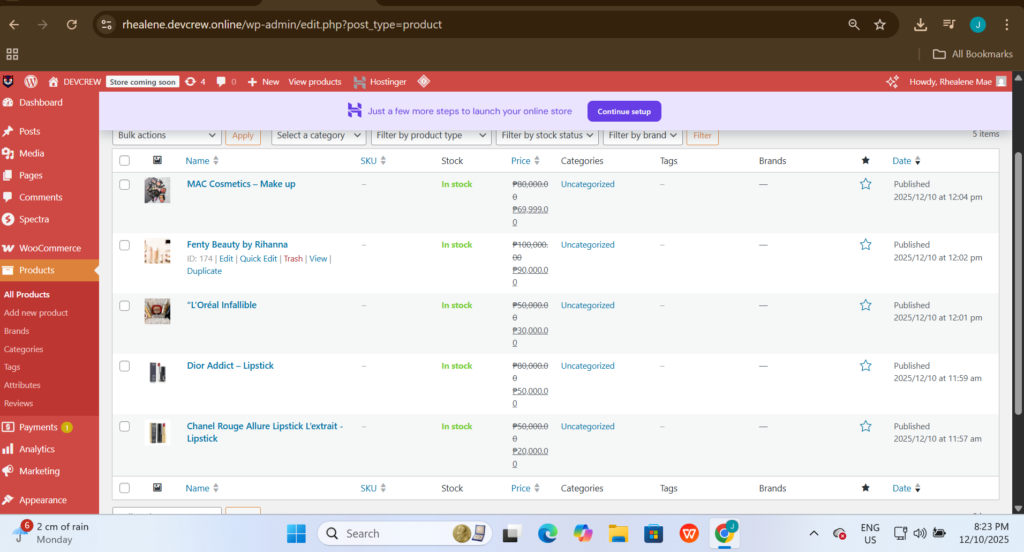
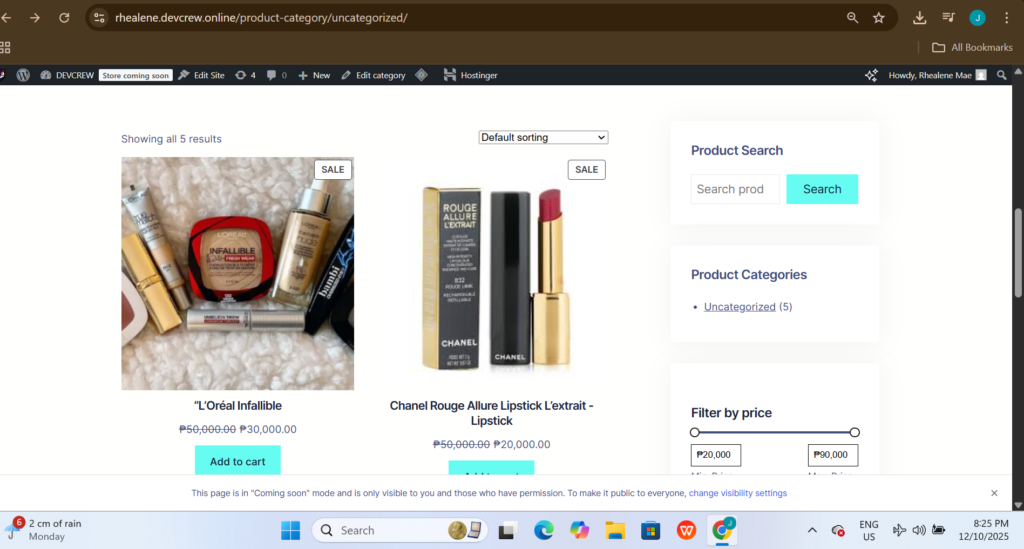
4. E-Commerce Plugin (e.g., WooCommerce)
This activity illustrates the complete process of managing an online store’s inventory. It highlights two key perspectives: the Administrative Backend, where products are configured and managed, and the User Frontend, where products are displayed and accessible to customers.
5. Install and Configure White Label Plugin
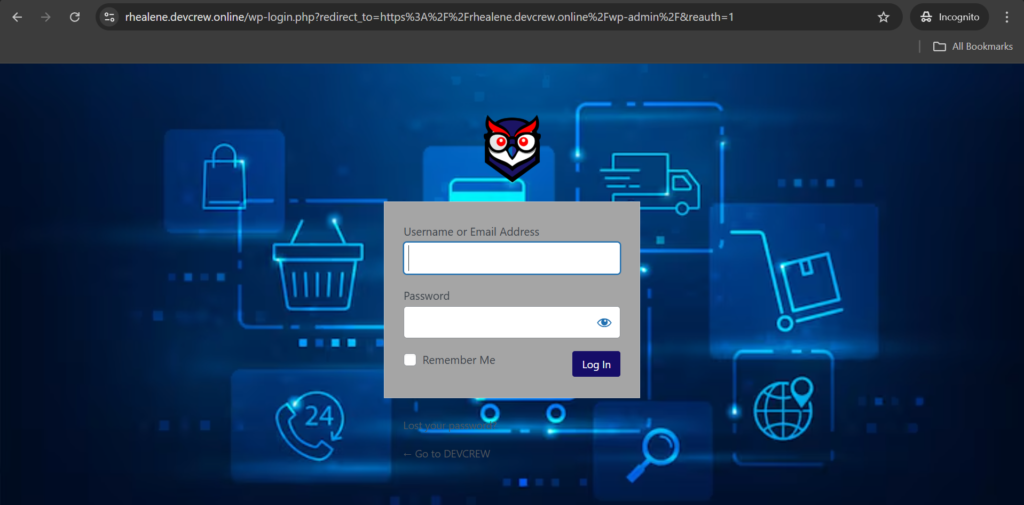
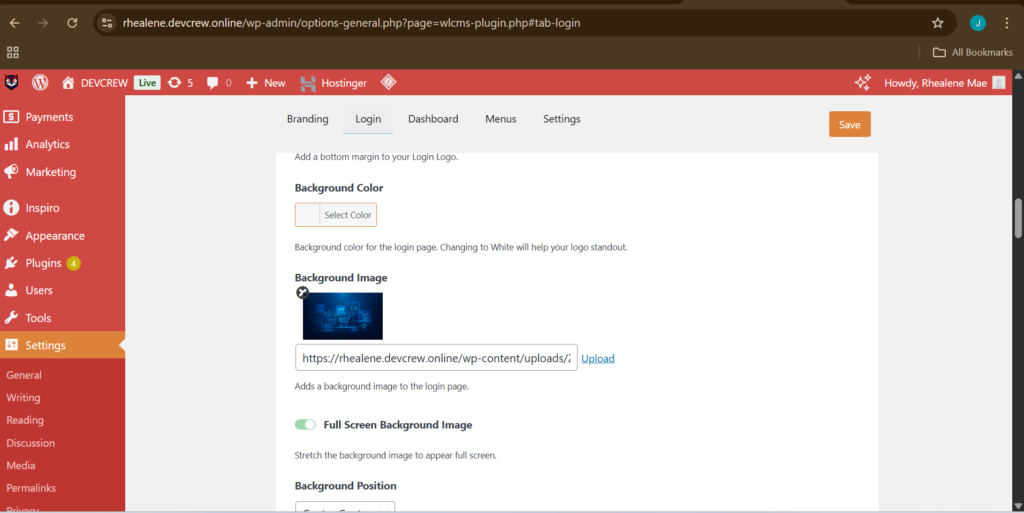
The first image shows the login interface of the web application at rhealene.devcrew.online, capturing the successful termination of a user session with a logout confirmation message. The second image displays the White Label CMS plugin settings within the WordPress admin dashboard, focused on the Menus tab, where the user customizes menu visibility to control backend access for different user roles.
6. Install and Configure WordFence Plugin for 2FA
The first image displays the WordPress login screen, where the user enters their username (Rhealenepadilla28@gmail.com) and password, with the “Remember Me” option available and the “Log In” button ready for submission.
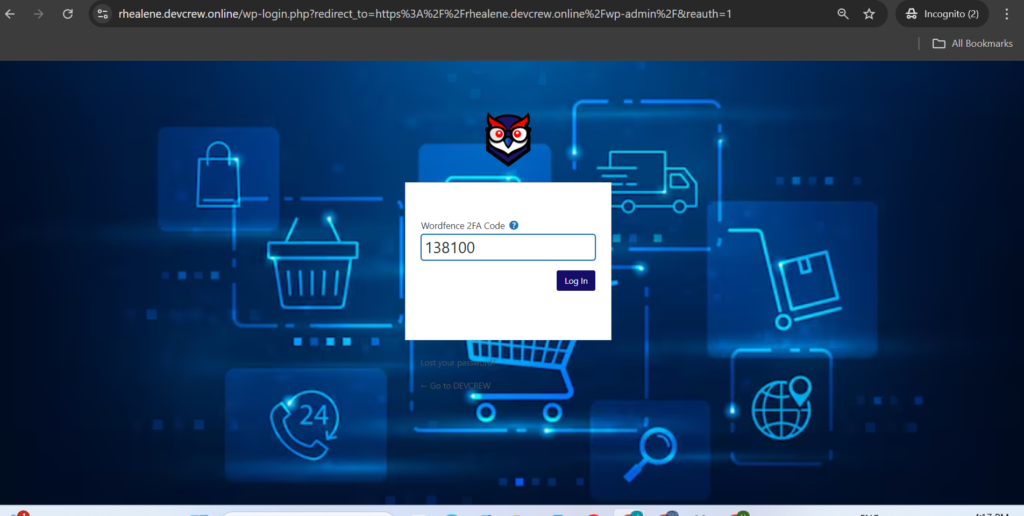
Upon successful entry of credentials, the user is prompted by Wordfence for a 6-digit two-factor authentication (2FA) code (shown as 138100). This additional security layer ensures that even if login details are compromised, unauthorized access is prevented without the unique, time-sensitive code, typically generated by an authenticator app such as Google Authenticator or Authy.

7. Install and Configure Ultimate Member for User Roles
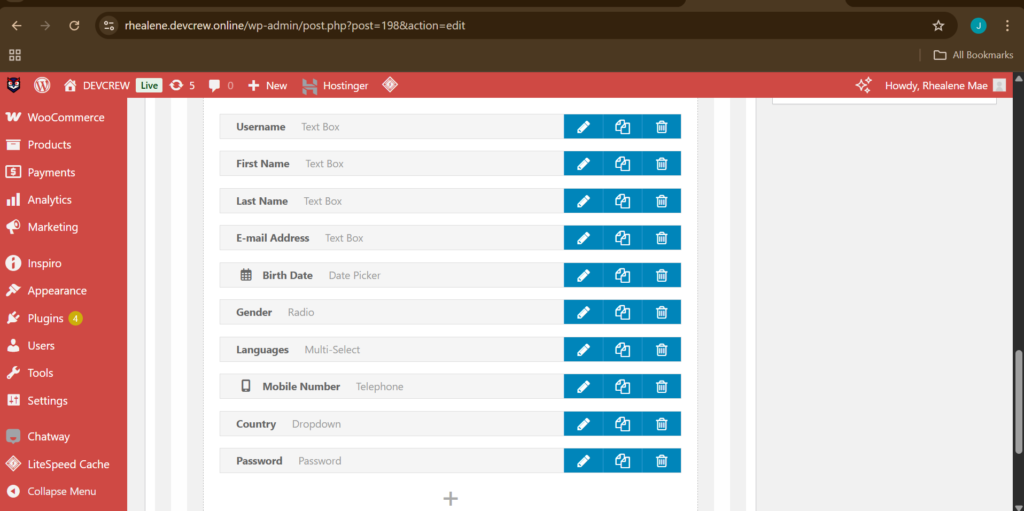
The image illustrates customizing a user registration form in WordPress using the Ultimate Member plugin. The form builder interface displays various input fields, including Username, First Name, Last Name, Email Address, Birthdate, Gender, Languages, Mobile Number, and Country, allowing for comprehensive user data collection.
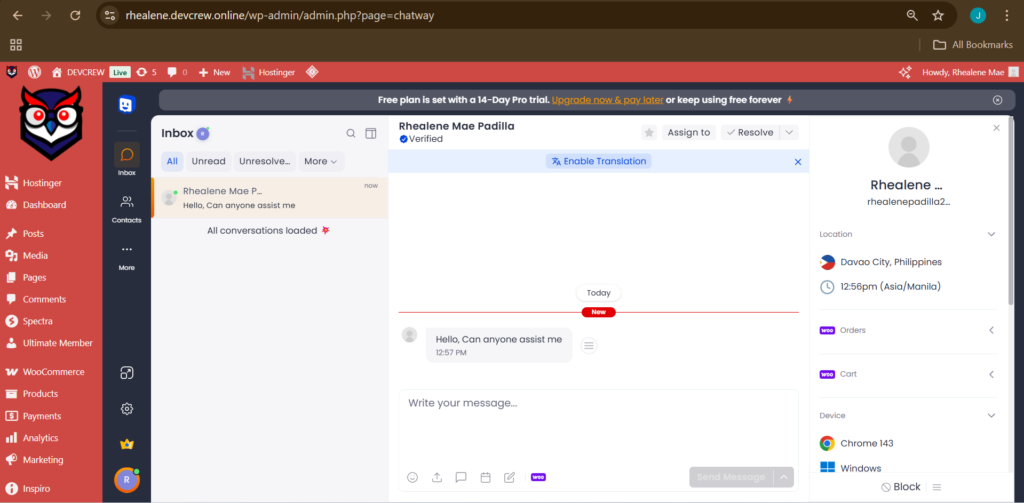
8. Install and Configure Chatway Plugin for Chatbot
The image displays the Chatway plugin interface within the WordPress dashboard, focusing on the Inbox section. This area shows real-time chat conversations between website visitors and the site administrator.